Enrollments & Student files
🎓 Principal
HEMLE manages two enrollment routes: requests submitted by parents via the mobile app, and direct enrollments carried out by administrative staff.
Route A — Parent request (via hemle-mobile)
1. The parent submits a request
From the mobile app, the parent:
- Searches for the school by its code (e.g.
EPL-001) - Fills in the form: child's information, desired class, required documents
- Submits the request
2. The request arrives in hemle-school
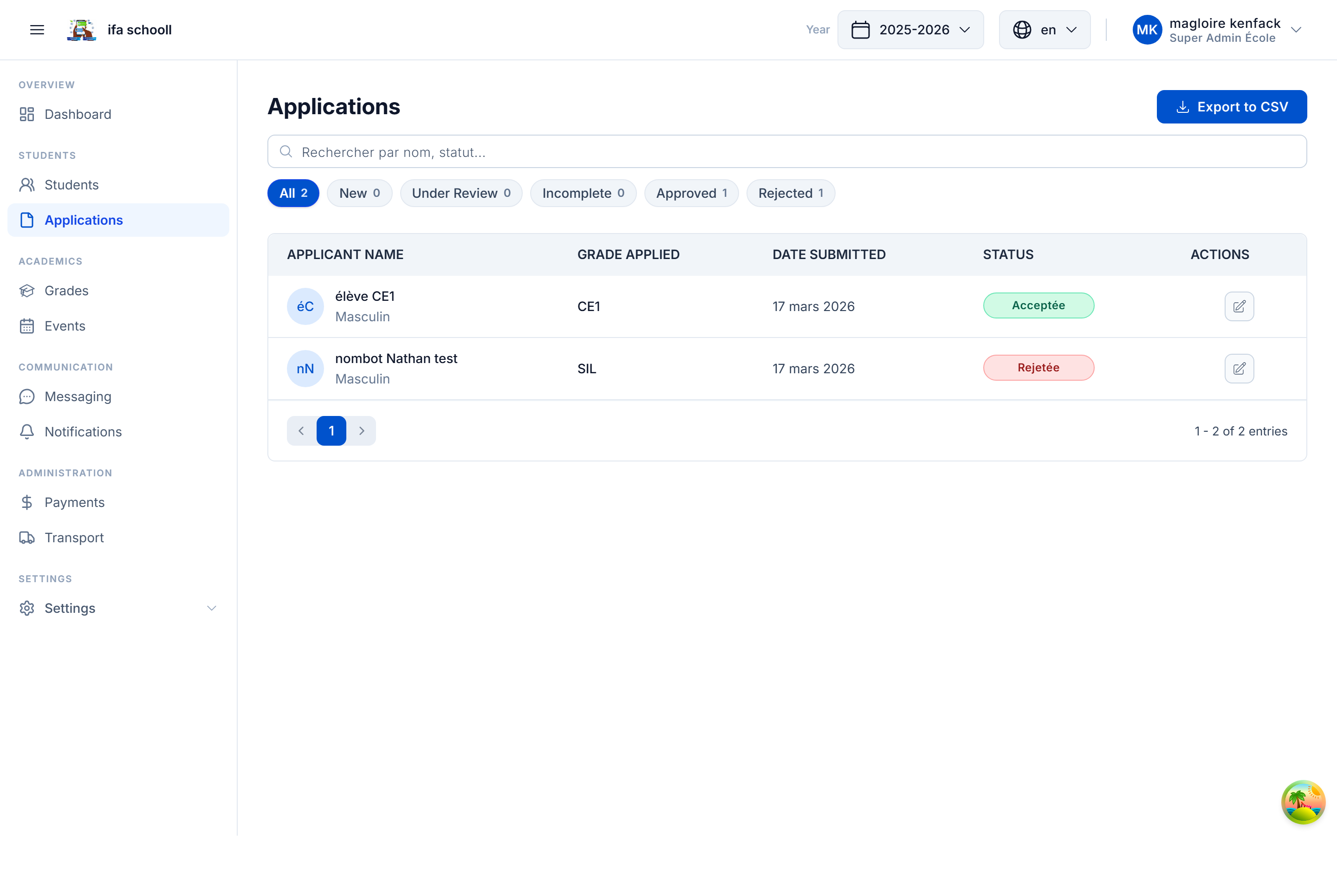
The table shows requests with their status: Pending, Accepted, Rejected, Info required.
The navigation badge shows the number of pending requests.
3. Reviewing a request
Click on a request to access the full file:
- Applicant information — child's identity, requested class
- Parent/guardian information — contact details, relationship
- Submitted documents — list of supporting documents (downloadable)
- Built-in messaging — exchanges with the parent about this request
4. Making a decision
| Decision | Code | Effect |
|---|---|---|
| Accept | ACCEPTED | Automatically creates the student file, assigns the class and academic year |
| Reject | REJECTED | Notifies the parent of the refusal with reason |
| Info required | INFO_REQUIRED | Requests additional documents or information from the parent |
Automatic student file
When a request is accepted, HEMLE automatically creates:
- The student file (StudentFolder) in the school
- An annual folder (YearFolder) for the current academic year
- The fee sheet based on the fee structures configured for the level
- The parent ↔ student link for mobile access
Route B — Direct enrollment (without request)
Used for in-person enrollments or transfers from another school.
- Click "New student" (or "Add without request")
- Enter the student's information: first name, last name, date of birth, gender, photo
- Select the academic year and class
- Confirm — the file and fee sheet are created immediately
Viewing student files
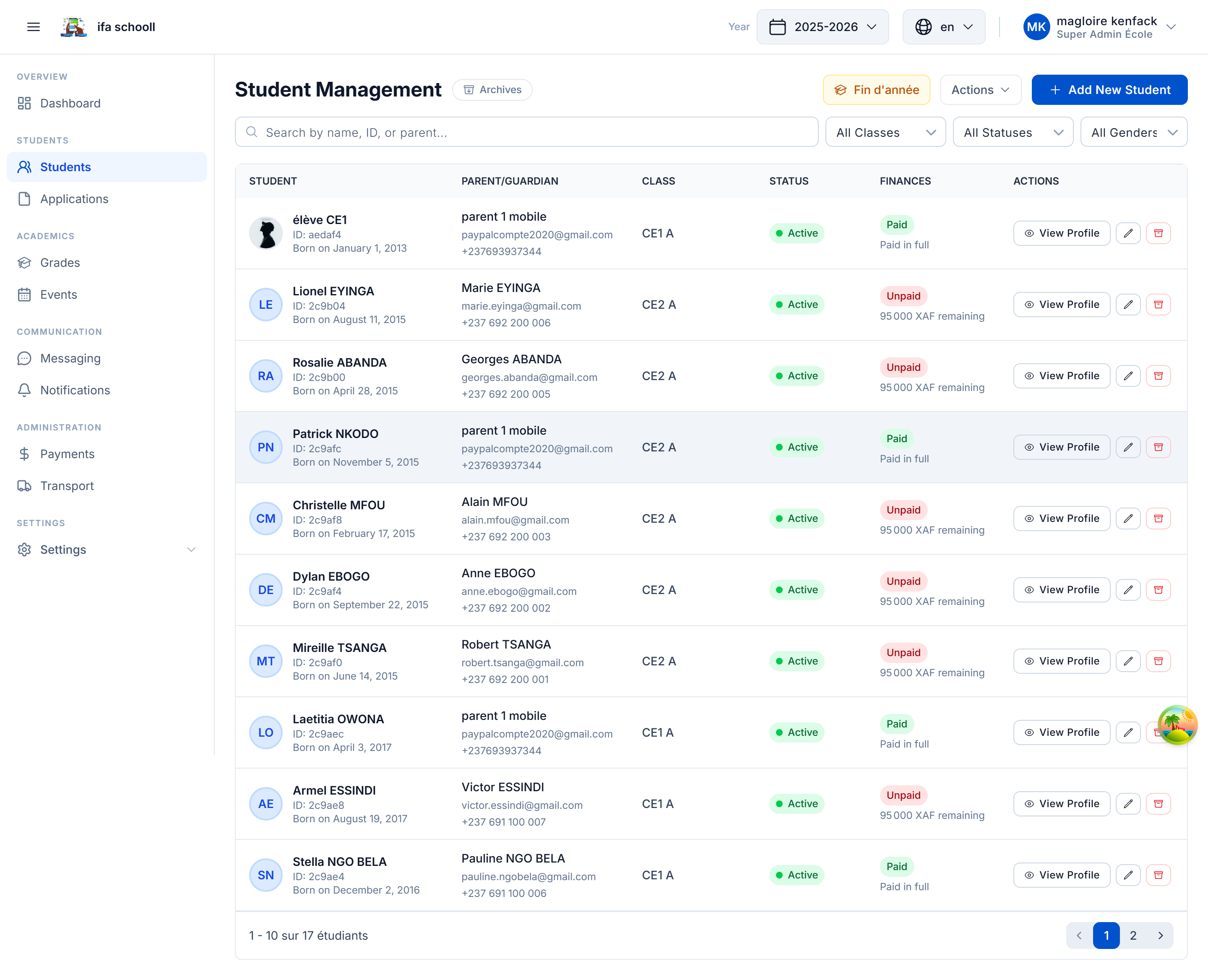
The table lists all active students for the current year. For each student you can access:
- Personal information
- Class and level
- Tuition fees and payments
- Grades and results
- Attendance
- Homework
- Academic record (history across all years)