Invite your team
🎓 Principal
Add members of your teaching and administrative staff. Each member will receive an invitation email to create their access to hemle-school.
Available roles
| Role | Default access |
|---|---|
| Principal | Full access to all features |
| Teacher | Grades, attendance, homework, messaging |
| Secretary | Enrollments, student files, events |
| Transport manager | Transport module only |
Permission customisation
Permissions for each role can be finely customised from Settings → Team management → Roles & Permissions. For example, you can create an "Accountant" role with access to finance only.
Adding a member
For each member to invite:
- Full name — First name and last name of the member
- Email — Professional email address (used as login identifier)
- Role — Select the role from the list
- Invitation method:
- Email link — HEMLE automatically sends an invitation email
- Temporary password — You generate a password to share manually (a "Generate" button is available)
Click "Add to list" — the member appears in the invitation list.
What does the invited member receive?
If the "email link" method is chosen, the member receives an email with:
- An "Accept invitation" button
- The school name and the role they were invited for
- A link valid for 48 hours
On click, they are prompted to create their password and access hemle-school directly.
Managing pending invitations
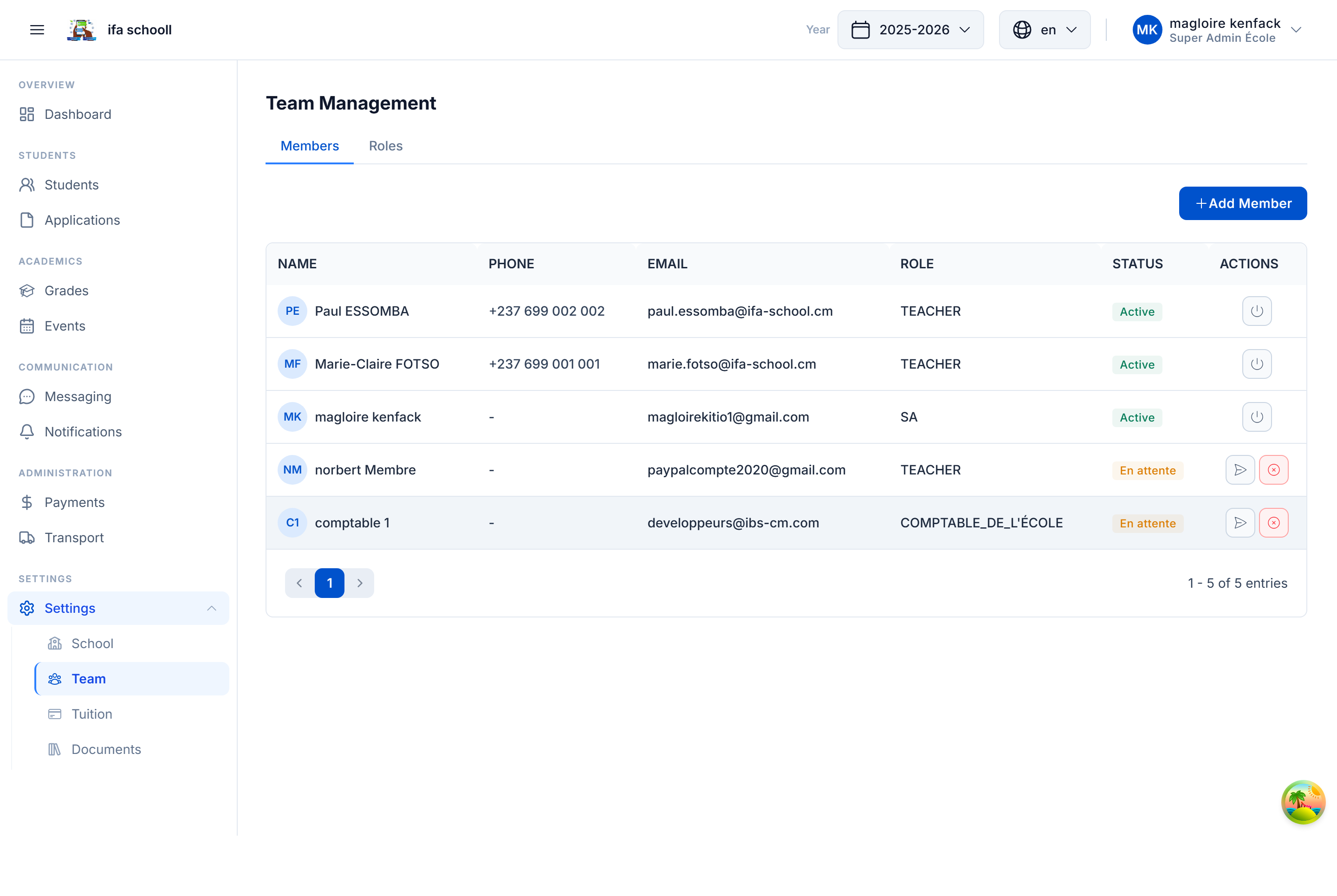
From Settings → Team management, you can:
- See pending invitations (sent but not yet accepted)
- Resend the invitation email if the member did not receive it
- Cancel an invitation
Invite later
This step is entirely skippable. You can invite team members at any time from Settings → Team management.
→ Next step: Official documents