First login — Create your school account
This step creates your principal account and sets up basic school information. It is done once, at the very beginning.
What you need
- The principal's email address (used as login identifier)
- The official school name
- The desired school code in format
XXX-XXX(e.g.EPL-001) - A secure password
Overview
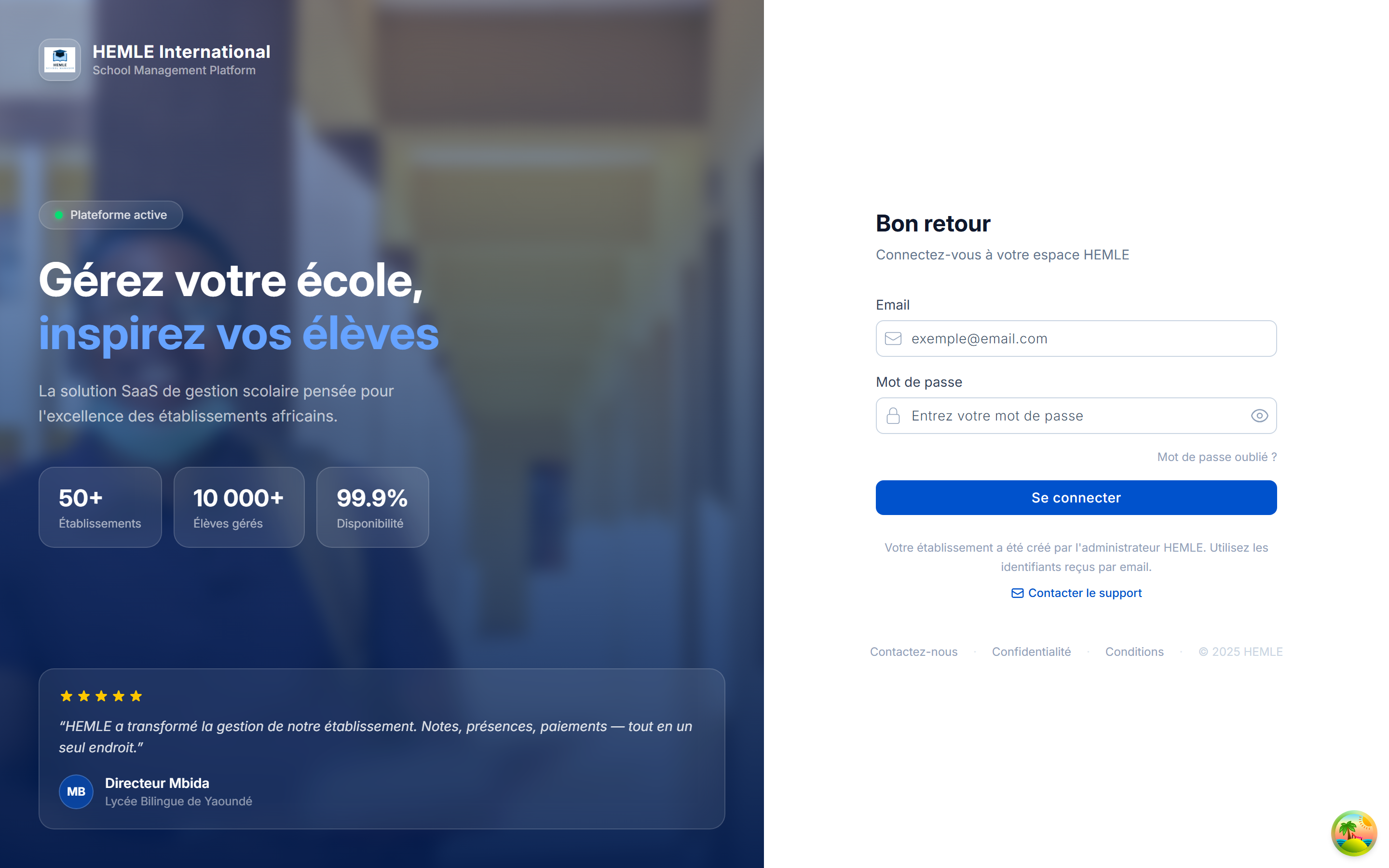
Steps
1. Choose your language
At the top of the form, select your working language: Français or English. This can be changed later in settings.
2. Enter school information
| Field | Description | Example |
|---|---|---|
| School name | Official name of the institution | Excellence Primary School |
| School code | Unique identifier in format XXX-XXX | EPL-001 |
| Principal / manager name | Full name displayed in the school | Mr. John Doe |
| School type | Public, Private or Religious | Private |
| Level | Set by HEMLE at creation — not editable | Primary |
| Phone | School contact number (optional) | +237 6XX XXX XXX |
The code is automatically formatted: the first 3 letters represent the school, the next 3 characters are a number. This code will be used by parents to find the school in the mobile app.
The format is strictly XXX-XXX — 3 uppercase letters, a dash, 3 alphanumeric characters.
3. Administrator account information
| Field | Description |
|---|---|
| First name | First name of the principal/administrator |
| Last name | Last name |
| Login identifier — must be valid |
4. Create a secure password
Your password must meet the following 5 criteria (shown in real time):
- ✅ At least 8 characters
- ✅ One uppercase letter
- ✅ One lowercase letter
- ✅ One number
- ✅ One special character (
!@#$%^&*etc.)
5. Verify your email address (OTP)
Once all fields are filled in, the "Send verification code" button becomes active.
- Click the button → a 6-digit code is sent to your email address
- Enter the code in the 6 boxes (auto-focus between boxes)
- The code is valid for 5 minutes — a "Resend code" button appears after expiry
As soon as the 6 digits are entered, verification starts automatically. No need to click a button.
School selection
After logging in, choose your school from the list.
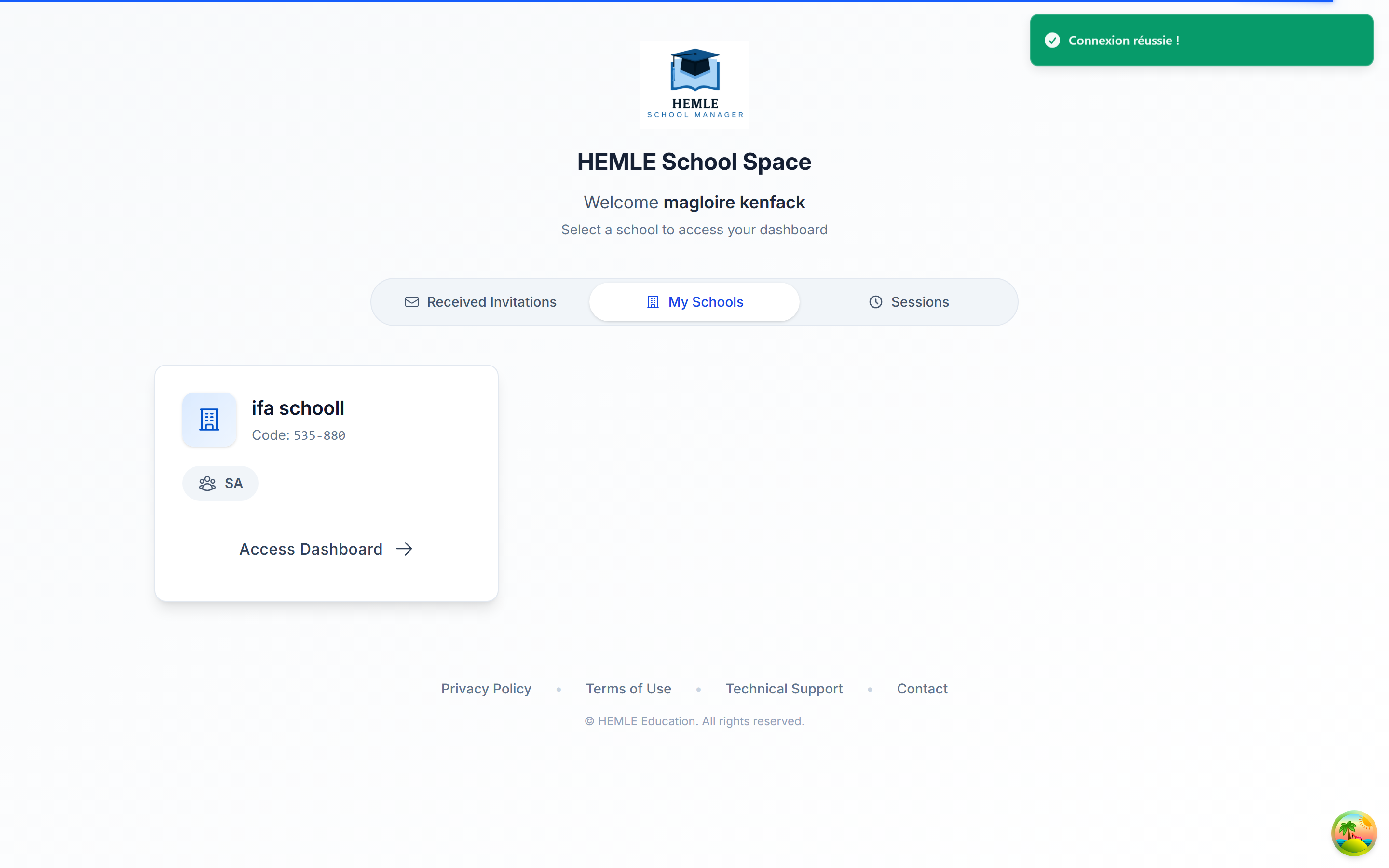
Dashboard
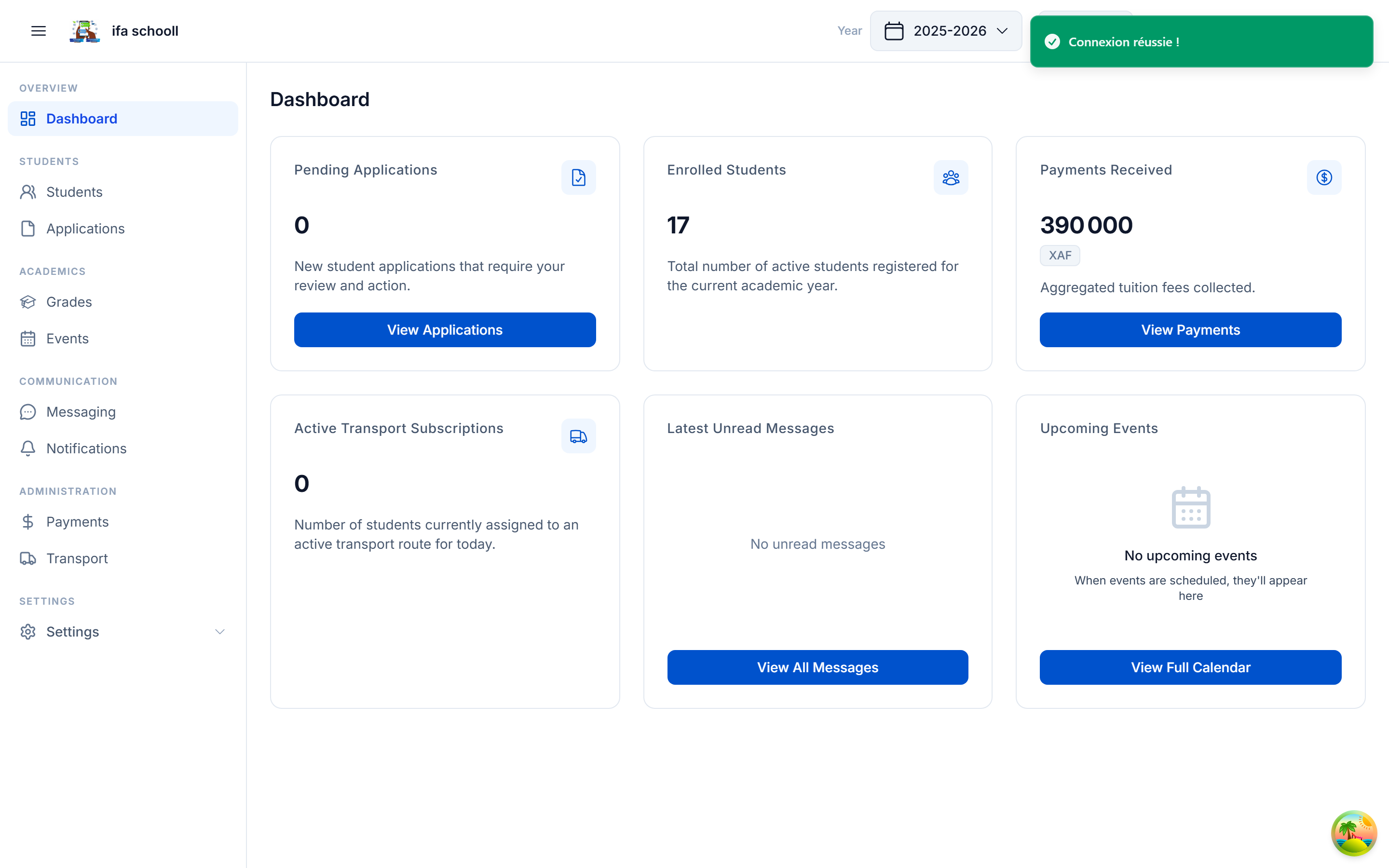
After account creation
Once the account is created, you access the onboarding dashboard with a progress bar showing the remaining steps.
→ Next step: School profile