Grade entry
👩🏫 Teacher
Enter your students' grades by subject and evaluation period. These grades automatically feed into report cards.
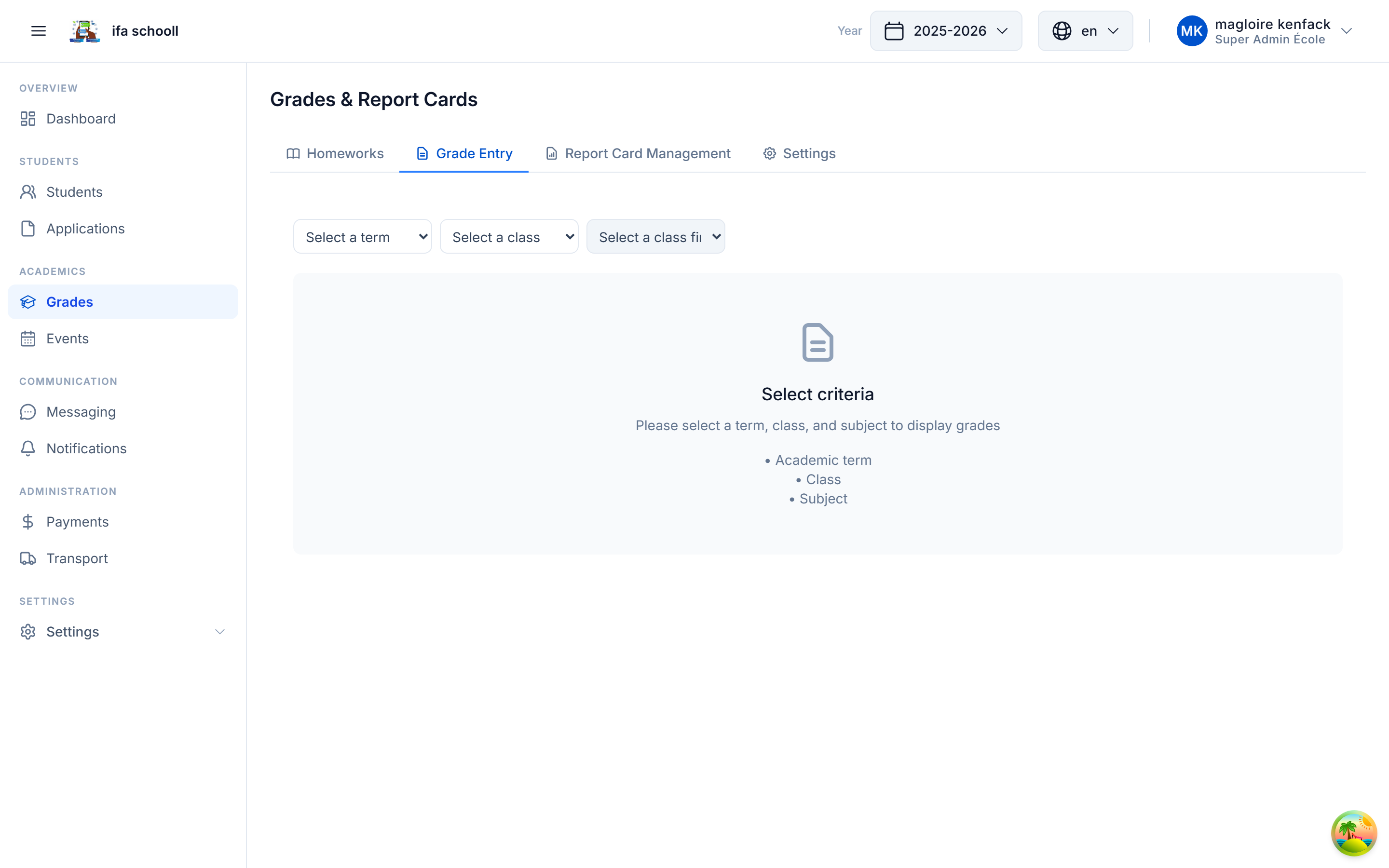
Selecting the entry context
Before entering, select:
- The class — e.g. "Class 6A", "Form 3B"
- The subject — e.g. "Mathematics", "English"
- The evaluation period:
- MID_TERM — sequence grade (mid-term assessment within a term)
- TERM — term grade (final assessment for the term)
Table mode — Quick entry
The table displays all students in the class as rows, and columns correspond to the evaluations for the selected period.
- Click "Edit grades" (pencil icon)
- The table switches to edit mode — enter grades directly in the cells
- Click "Save" to confirm
Available table actions
| Action | Description |
|---|---|
| Edit grades | Activates table edit mode |
| Manage columns | Add/remove evaluation columns |
| Import grades | Import from an Excel file |
| Export template | Download a pre-filled Excel file to complete |
Managing evaluations (columns)
Click "Manage columns" to:
- Add a new evaluation (name, type MID_TERM or TERM, term)
- Delete an existing evaluation
Importing grades from Excel
- Click "Export template" — you get an Excel file with the student list
- Complete the grades in the file
- Click "Import grades" and select your file
- Review the preview and confirm
Important rules
Grades and report cards
A grade can only be deleted by the teacher who entered it or by an administrator with the GRADES_DELETE permission.
Editing a grade is possible at any time before the report card is published.
Grade scales
Text assessments (Excellent, Good, Pass, etc.) are automatically calculated based on the scales configured in Grades & Report cards → Settings → Scales.