Roles & Permissions
🎓 Principal
HEMLE uses an RBAC system (role-based access control). Each team member has a role, and each role precisely defines what the member can see and do in the application.
SA role — School Super Admin
The principal holds the SA (Super Admin) role, automatically created when the account is opened. This role has access to all features without restriction and cannot be deleted.
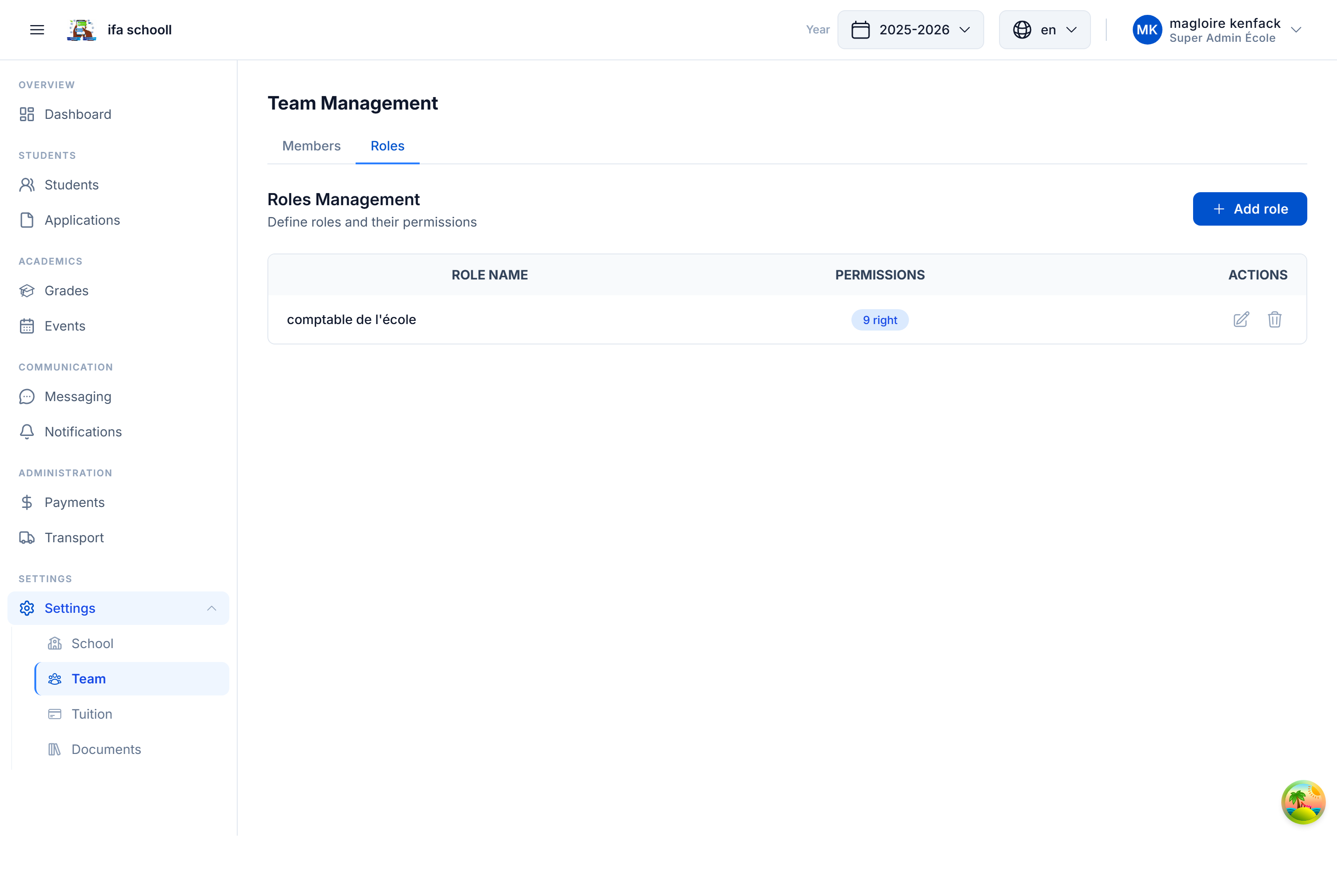
Creating a custom role
- Go to Settings → Team management → Roles
- Click "New role"
- Give the role a name (e.g. "Teacher", "Accountant", "Secretary")
- Select the permissions to grant
Available permission domains
| Domain | Permissions included |
|---|---|
| Students | View own students, view all students, create, delete, enrollment requests |
| Classes | View classes |
| Grades | Manage own grades, manage all grades, delete grades, view grades |
| Attendance | Manage own attendance, manage all attendance |
| Homework | Manage own homework |
| Finance | View fees, manage fees, view payments, record payments, modify, view accounts |
| Staff | View team, invite members |
| School | Edit school information, manage academic years |
| Transport | View, manage |
| Events | View, manage |
| Messaging | Use messaging |
| Settings | View settings |
Assigning a role to a member
- Go to Settings → Team management
- Find the member in the table (columns: Name, Phone, Email, Role, Status)
- Click on Actions (icon at the end of the row)
- Select "Change role"
Member statuses
| Status | Meaning |
|---|---|
| Active | The member is logged in and operational |
| Pending | The invitation has been sent, the member has not yet connected |
| Inactive | Access has been revoked |
Principle of least privilege
Only assign the permissions necessary for each role. A teacher does not need access to financial data. An accountant does not need to modify student grades.